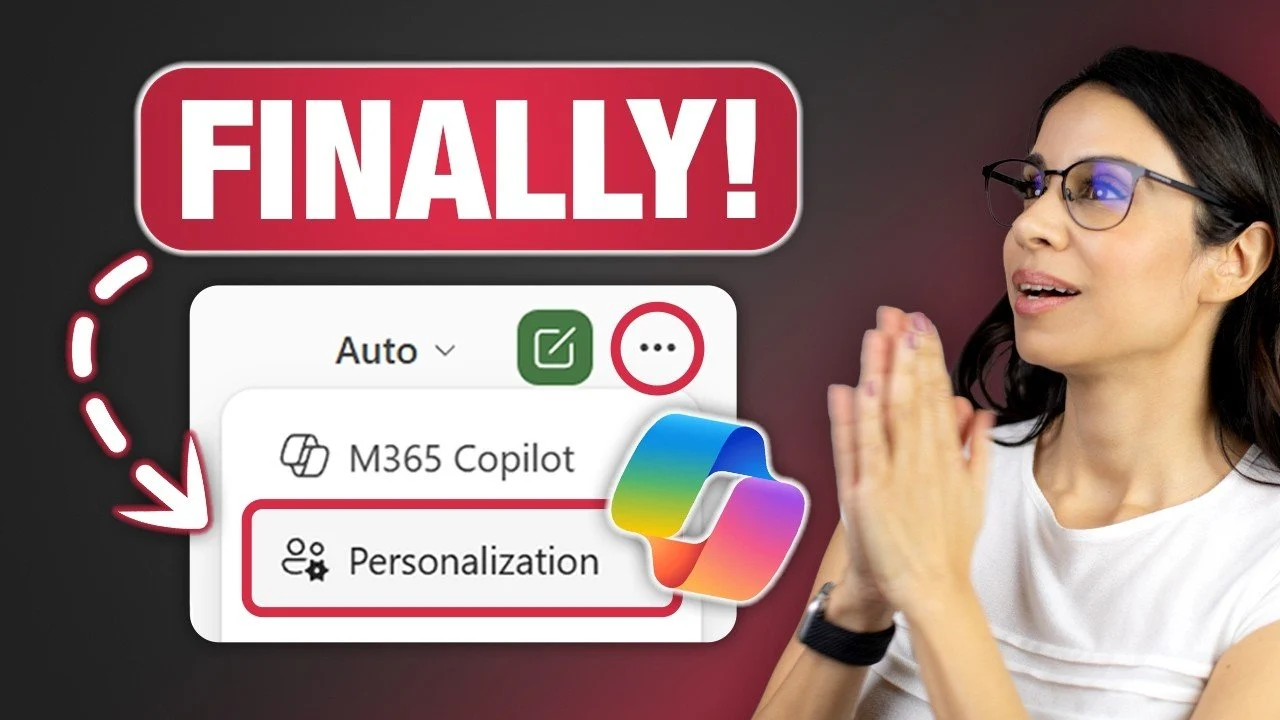
Microsoft has rolled out a major update to Copilot in Excel, emphasizing personalization to better align with individual user preferences. This update introduces the ability to customize elements like date formats, table layouts and even default commands such as replacing “Merge & Center” with “Center Across Selection.” Leila Gharani explores how these changes allow users to create a tailored experience that adapts to their unique workflows while maintaining consistency across devices. Notably, shared files retain their default settings, making sure collaboration remains unaffected by personal adjustments.
Dive into this guide to explore how these personalization features can enhance your productivity. You’ll gain insight into practical applications like customizing PivotTable headers for clarity, fine-tuning number formats for financial reports and simplifying chart designs for better focus. Additionally, learn how cross-device synchronization ensures your preferences follow you seamlessly, saving time and effort. This breakdown will help you make the most of Excel’s new capabilities while navigating potential challenges effectively.
What’s New: Tailoring Excel to Your Preferences
TL;DR Key Takeaways :
- Microsoft has updated Copilot in Excel to include personalization features, allowing users to customize formatting, workflows and settings for a more intuitive and efficient experience.
- Key personalization options include custom date formats, table formatting and tool alternatives, all tied to your Microsoft account for seamless cross-device consistency.
- Real-world applications of these features include enhanced PivotTables, number formatting, currency customization and simplified data visualizations for improved clarity and productivity.
- Challenges include occasional inconsistencies in applying settings across devices and workbooks, highlighting the need for further refinement and development.
- Microsoft encourages user feedback to improve and expand these features, making sure Excel evolves to meet diverse user needs and remains a powerful productivity tool.
The latest personalization features in Copilot empower you to define how Excel behaves and appears, offering a more customized experience. These updates include:
- Date Formats: Set your preferred style, such as DD-MMM-YYYY, to ensure consistency in your reports.
- Table Formatting: Customize border styles, header designs and gridline visibility to match your aesthetic or functional needs.
- Tool Alternatives: Replace default tools like “Merge & Center” with options such as “Center Across Selection” for greater flexibility in layout design.
These preferences are tied directly to your Microsoft account, making sure they are automatically applied across all devices and workbooks you access. Notably, shared files retain their default formatting, preserving consistency for collaborative projects while allowing you to work in a way that suits your individual style.
Seamless Cross-Device Consistency
One of the most practical benefits of these personalization features is their ability to maintain consistency across devices. Whether you’re working on a desktop, laptop, or tablet, your settings follow you, eliminating the need to repeatedly adjust preferences. For example, if you’ve configured specific formatting for financial reports, such as currency symbols or decimal places, these settings will automatically apply whenever you open Excel on any device linked to your account. This ensures a streamlined workflow, saving time and reducing frustration.

Here is a selection of other guides from our extensive library of content you may find of interest on Excel and Copilot.
Real-World Applications of Personalization
The personalization options in Copilot extend beyond basic formatting, offering tools to optimize your workflow for clarity and efficiency. Here are some practical examples of how these features can be applied:
- PivotTables: Add descriptive headers to make data interpretation easier and more intuitive.
- Number Formatting: Highlight negative values in red with parentheses or display percentages for improved readability in financial or statistical data.
- Currency Customization: Specify symbols and control decimal places to ensure precision in financial reporting.
- Formulas: Use modern functions like XLOOKUP and SUMIFS to simplify complex calculations and enhance efficiency.
- Data Analysis: Include both absolute and percentage changes in reports to provide a more comprehensive view of trends and insights.
- Charts: Simplify visualizations, such as pie charts, by limiting them to three or fewer categories for better clarity and focus.
These examples highlight how personalization can help you focus on insights and decision-making rather than spending time on repetitive formatting tasks. By tailoring Excel to your specific needs, you can create a more streamlined and productive workflow.
Challenges and Areas for Improvement
While the personalization features in Copilot offer significant benefits, they are not without challenges. Some users have reported inconsistencies in how settings are applied, particularly with table formatting. For instance, predefined border styles or header designs may not always render correctly across devices or workbooks. Additionally, certain advanced customization options may require further refinement to ensure a flawless user experience.
These issues underscore the need for ongoing development to address current limitations. Microsoft’s commitment to improving these features will likely involve resolving these inconsistencies and expanding the range of personalization options available to users.
Your Role in Shaping the Future
Microsoft is actively seeking feedback from users to refine and expand the personalization features in Copilot. By sharing your experiences, suggestions and challenges, you can play a vital role in shaping future updates. Whether it’s requesting additional formatting options, suggesting workflow improvements, or identifying areas where the current system falls short, your input is essential to making sure that Excel continues to evolve in ways that meet your needs.
This collaborative approach not only enhances the functionality of Excel but also ensures that it remains a powerful tool for professionals and individuals alike. Your feedback can help Microsoft prioritize updates that address real-world challenges and introduce innovative solutions.
Media Credit: Leila Gharani
Disclosure: Some of our articles include affiliate links. If you buy something through one of these links, techschimp Gadgets may earn an affiliate commission. Learn about our Disclosure Policy.