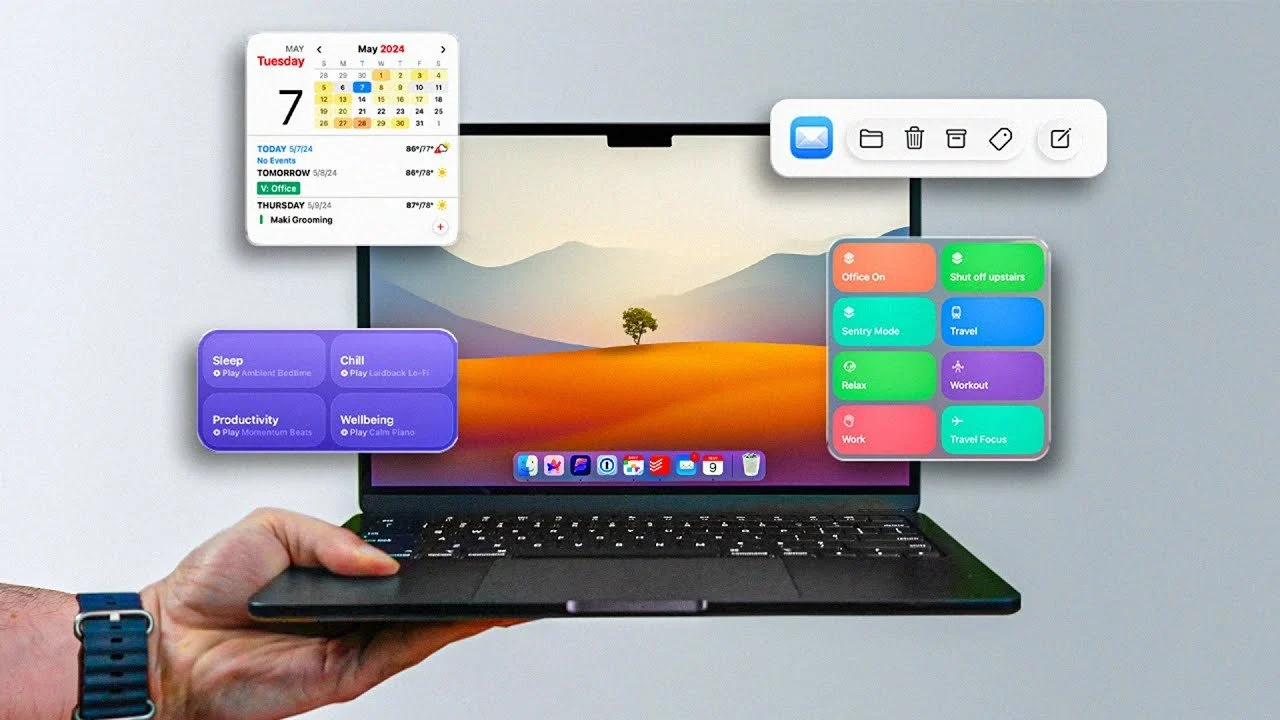
Customizing your Mac settings can have a meaningful impact on how you interact with your device, from improving efficiency to creating a more personalized experience. In a recent breakdown by FromSergio, 27 specific adjustments are explored, including practical changes like allowing the three-finger drag feature for smoother window management and customizing the Finder sidebar to prioritize frequently accessed folders. These tweaks are designed to help users streamline their workflows while minimizing distractions, making their Macs feel more intuitive and tailored to their needs.
Dive into actionable insights that cover a range of areas, such as optimizing your Dock by removing unused apps, enhancing security with Touch ID adjustments and fine-tuning display settings like Night Shift to reduce eye strain. You’ll also learn how to make Spotlight searches faster and more relevant by disabling unnecessary indexing categories. Whether you’re looking to boost productivity or simply make your Mac more comfortable to use, this guide offers practical steps to help you get the most out of your device.
macOS Tips and Tricks
TL;DR Key Takeaways :
- Customizing the Dock, such as removing unused apps, allowing auto-hide and minimizing distractions, can improve functionality and visual appeal.
- Optimizing Finder settings, like customizing the sidebar, allowing the path bar and adjusting search settings, enhances file management efficiency.
- Adjusting display settings, including disabling auto-brightness, allowing Night Shift and using light/dark modes, improves visual comfort and usability.
- Enhancing security with features like Apple Watch unlock, Touch ID customization and extending sleep timers balances convenience and protection.
- Fine-tuning trackpad and Spotlight settings, such as increasing tracking speed and disabling unnecessary indexing, streamlines navigation and search efficiency.
Dock Customization
The Dock is a central feature of macOS and customizing it can improve both its functionality and visual appeal. Consider these adjustments to optimize your Dock:
- Remove unused apps to declutter and focus on the tools you use most often.
- Adjust the Dock’s size to fit your screen and personal preferences, making sure easy access without taking up unnecessary space.
- Enable the auto-hide feature to maximize screen real estate, especially on smaller displays.
- Minimize windows into app icons for a cleaner and more organized workspace.
- Switch the minimize animation to “scale effect” for faster and less distracting transitions.
- Disable app bouncing animations and hide recent apps to reduce visual clutter and distractions.
Mission Control
Mission Control is a powerful tool for managing open windows and desktops, allowing you to stay organized and efficient. To make the most of it:
- Group windows by application to keep related tasks together and improve organization.
- Disable automatic triggering of Mission Control when dragging windows to the top of the screen if it disrupts your workflow.
These adjustments can help you maintain focus and streamline multitasking.

Explore further guides and articles from our vast library that you may find relevant to your interests in macOS.
Widgets and Desktop
Widgets provide quick access to essential information while keeping your desktop functional and visually appealing. Here’s how to optimize their use:
- Add widgets like weather, calendar and reminders to stay updated on important details at a glance.
- Integrate iPhone widgets if you use one, making sure seamless functionality across your Apple devices.
A well-organized desktop with useful widgets can enhance both productivity and convenience.
Menu Bar Adjustments
A cluttered menu bar can be distracting and inefficient. Simplify it by:
- Removing unnecessary icons, such as Spotlight or third-party app icons, to reduce visual noise.
- Displaying only essential items, like Bluetooth, Wi-Fi and battery percentage, for quick access to critical information.
These changes keep your menu bar clean and focused on what matters most.
Trackpad Settings
Fine-tuning your trackpad settings can make navigation smoother and more intuitive. Consider these adjustments:
- Increase the tracking speed for quicker pointer movement and improved responsiveness.
- Enable “tap to click” for easier and more efficient interactions.
- Disable “natural scrolling” if it feels counterintuitive, aligning the scrolling direction with your preferences.
- Activate the three-finger drag feature to move windows more efficiently without clicking.
These settings can make your Mac feel more responsive and tailored to your workflow.
Finder Optimization
Finder is your gateway to files and folders and optimizing it can save you time and effort. Here’s how to enhance its functionality:
- Customize the sidebar by removing unused items and adding frequently accessed folders for quicker navigation.
- Set the default folder view to “list” for better visibility and organization.
- Enable the path bar to simplify navigation and provide a clear view of your file hierarchy.
- Adjust search settings to focus on the current folder for more accurate and relevant results.
- Create a custom “Recents” folder to improve file organization and access to frequently used files.
- Add useful toolbar functions, such as AirDrop and Mail, for quicker access to key features.
These changes can make Finder a more powerful and efficient tool for managing your files.
Display and Appearance
Your display settings can significantly impact comfort and usability. Optimize them by:
- Disabling auto-brightness and True Tone for consistent color accuracy, especially for creative work.
- Allowing Night Shift to reduce eye strain during nighttime use by adjusting the display’s color temperature.
- Setting your Mac to switch between light and dark modes automatically based on the time of day for a more adaptive experience.
- Adjusting scroll bar behavior to make navigation more intuitive and aligned with your preferences.
These adjustments can improve both the visual experience and overall usability of your Mac.
Lock Screen and Security
Balancing security and convenience is essential for a seamless user experience. Here are some tips:
- Extend the sleep timer to 20 minutes to avoid frequent interruptions during periods of inactivity.
- Enable your Apple Watch to unlock your Mac for quick and secure access without entering a password.
- Add multiple fingerprints to Touch ID for easier authentication and access to your device.
These settings enhance security while maintaining ease of use.
Spotlight Search
Spotlight is a versatile search tool, but you can make it even more effective with these tweaks:
- Disable indexing for unnecessary categories to speed up searches and focus on relevant results.
- Consider using a Spotlight replacement like Raycast for advanced features and greater customization options.
These adjustments can make Spotlight a more powerful tool for finding information and launching apps.
Miscellaneous Settings
Finally, here are some additional settings to further enhance your Mac experience:
- Assign default apps for specific file types to streamline file handling and open files with your preferred software.
- Disable warnings for iCloud file removal and file extension changes to reduce interruptions.
- Keep folders on top when sorting by name for better organization and easier access to important directories.
- Hide external drive icons from the desktop to maintain a cleaner and more focused workspace.
By customizing these settings, you can create a more efficient and personalized computing environment. Each adjustment is designed to simplify your workflow, enhance usability and make your Mac work better for you. Whether you’re a casual user or a professional, these settings can help you get the most out of your device.
Media Credit: FromSergio
Disclosure: Some of our articles include affiliate links. If you buy something through one of these links, techschimp Gadgets may earn an affiliate commission. Learn about our Disclosure Policy.