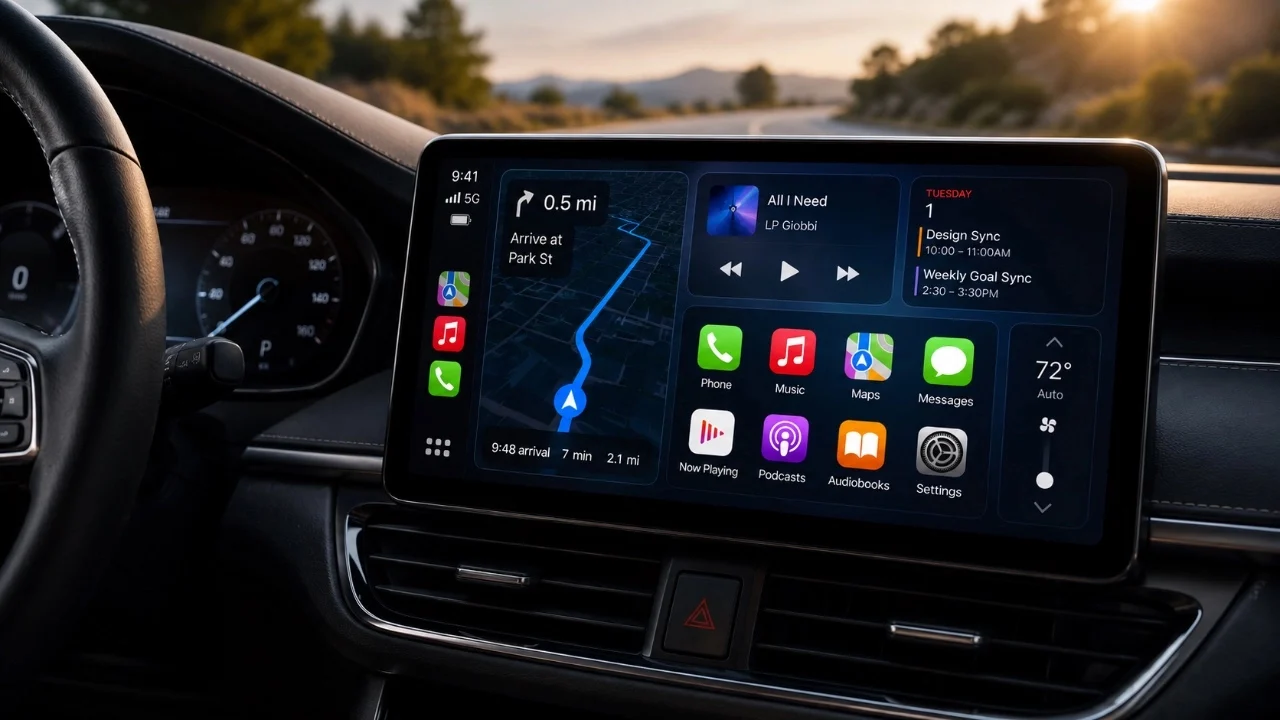
CarPlay offers a range of customization options that allow you to tailor its interface to suit your preferences and complement your vehicle’s interior design. From allowing dark mode to selecting wallpapers and refining icon styles, these features empower you to create a seamless and personalized in-car experience. The video below from Jacoob’s Quick Tips provides a detailed breakdown of these customization options, helping you optimize your CarPlay setup for both functionality and aesthetics.

Dark Mode: Enhancing Comfort and Reducing Glare
Dark mode is one of CarPlay’s most practical features, designed to improve visibility and reduce eye strain, particularly during nighttime or low-light driving conditions. By switching to dark mode, you can minimize glare from the screen, making it easier to focus on the road.
To enable dark mode, navigate to the CarPlay settings menu and toggle between light and dark modes. For those who prefer a consistently darker interface, activating the “Always Show Dark Maps” option ensures that navigation maps remain in dark mode, regardless of the time of day. This feature is especially useful for reducing distractions and maintaining a cohesive look with dashboards that feature darker color schemes.
Dark mode not only enhances comfort but also aligns with modern design trends, offering a sleek and professional appearance. Whether you’re driving at night or simply prefer a darker aesthetic, this feature ensures a more enjoyable and visually harmonious driving experience.
Wallpaper Customization: Adding a Personal Touch
Customizing the CarPlay wallpaper is a simple yet effective way to add a personal touch to your interface. CarPlay offers a selection of iOS wallpapers as well as basic color options like black or gray, allowing you to choose a design that complements your vehicle’s interior. Darker wallpapers work particularly well when paired with dark mode, as they create a seamless and distraction-free display.
To update your wallpaper, access the CarPlay settings and select your preferred design from the available options. This small but impactful change can significantly enhance the overall look and feel of the interface. Whether you prefer a bold, vibrant design or a more understated aesthetic, wallpaper customization allows you to reflect your personal style while maintaining the system’s functionality.
Icon Style Adjustments: Refining the Interface
CarPlay also provides options to adjust icon styles, allowing you to refine the interface to suit your preferences and improve usability. You can choose between light, auto dark, or always dark icon modes, depending on your lighting conditions and aesthetic preferences. For those who favor a minimalist look, the “Clear Icons” option offers a semi-transparent design that adapts to your chosen wallpaper, creating a clean and modern appearance.
These icon adjustments not only enhance the visual appeal of the interface but also improve navigation efficiency. Clear and easily recognizable icons reduce the time spent searching for specific apps, which is particularly beneficial while driving. By selecting the icon style that best suits your needs, you can create an interface that is both visually pleasing and highly functional.
Combining Features for a Cohesive Interface
The true potential of CarPlay customization lies in combining its various features to create a cohesive and personalized interface. By integrating dark mode, wallpaper customization and icon style adjustments, you can design a system that aligns with your personal preferences and complements your vehicle’s dashboard.
For a sleek and minimalist aesthetic, consider pairing dark mode with a subtle wallpaper and clear icons. Alternatively, if you prefer a more vibrant and dynamic display, opt for a colorful wallpaper and light icon styles. These customization options provide the flexibility to tailor CarPlay to your unique tastes, making sure a driving experience that is both functional and visually appealing.
By taking advantage of these features, you can transform CarPlay into an extension of your personal style while enhancing its usability. Whether you’re commuting to work or embarking on a road trip, a well-customized CarPlay interface can make your journey more enjoyable and efficient.
Check out more relevant guides from our extensive collection on CarPlay customization that you might find useful.
Source & Image Credit: Jacob’s QuickTips
Disclosure: Some of our articles include affiliate links. If you buy something through one of these links, techschimp Gadgets may earn an affiliate commission. Learn about our Disclosure Policy.