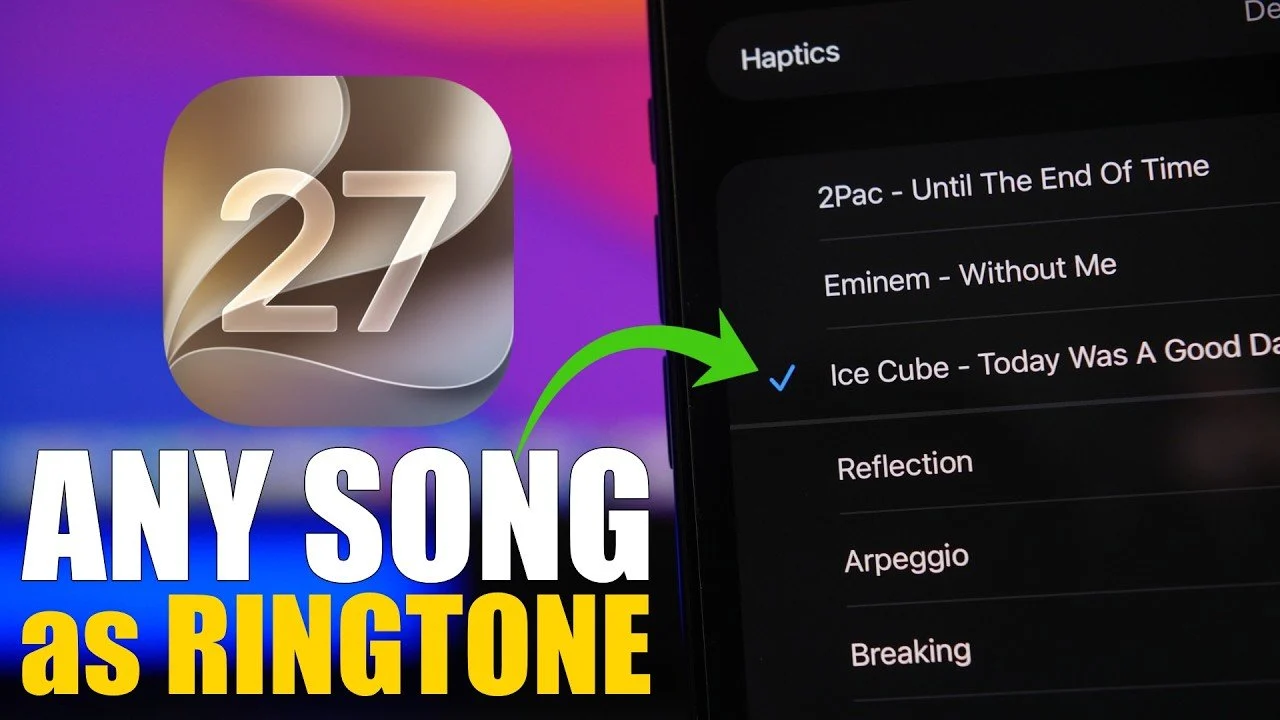
Customizing your iOS 27 device has become more accessible than ever, allowing you to set any song as your ringtone. This feature not only adds a personal touch to your device but also ensures that your phone reflects your unique style. By following a straightforward process, you can transform your favorite tunes into ringtones. The video below from iReviews will walk you through the necessary steps, covering file requirements, setup instructions, and advanced customization options.

Understanding Ringtone File Requirements
Before diving into the customization process, it’s crucial to ensure that your chosen song meets iOS 27’s ringtone requirements. Here are the key details to keep in mind:
- File Format: The audio file must be in MP3 or M4A format, as these are the only formats supported by iOS for ringtones.
- Duration: The file must be trimmed to a maximum of 30 seconds. iOS does not support ringtones longer than this limit.
If your selected song exceeds the 30-second limit, you can use audio editing tools to trim it. Apps like GarageBand or third-party options available on the App Store are excellent for this purpose. These tools allow you to adjust the length of your audio file with precision, making sure it meets the required specifications.
Step-by-Step Guide to Setting a Ringtone
Once your audio file is ready, setting it as your ringtone is a simple process. Follow these steps to personalize your device:
- Save the File: Store the trimmed audio file on your device, preferably in the Files app for easy access.
- Locate the File: Open the Files app, find your audio file and tap and hold it to bring up the options menu.
- Select “Share”: From the options menu, choose the “Share” option to proceed.
- Set as Ringtone: In the sharing options, select “Use as Ringtone.” The file will automatically be added to your ringtone library.
After completing these steps, your chosen song will be set as your ringtone. Every time your phone rings, you’ll enjoy a personalized audio experience that reflects your preferences.
Managing and Organizing Ringtones
iOS 27 offers intuitive tools to manage and organize your ringtones, making sure your library remains clutter-free and easy to navigate. Here’s how you can take control of your ringtones:
- Switch Ringtones: Navigate to Settings > Sounds & Haptics. From there, you can preview and select your preferred ringtone from the available options.
- Delete Ringtones: To remove a ringtone, swipe left on it in the settings menu and tap “Delete.” This helps you maintain an organized and streamlined ringtone library.
These management features make it simple to update or reorganize your ringtones whenever you want, giving you full control over your device’s audio settings.
Advanced Customization Options
Beyond setting a general ringtone, iOS 27 allows you to assign specific ringtones to individual contacts. This feature adds a layer of functionality and personalization, allowing you to identify callers without even glancing at your phone. Here’s how you can use this feature effectively:
- Assign a professional tone for work-related contacts to maintain a formal vibe.
- Choose a fun or sentimental song for friends and family to reflect your personal connection.
To assign a ringtone to a contact, go to the Contacts app, select the desired contact, tap Edit, and choose a ringtone under the “Ringtone” section. This customization ensures that your phone’s alerts are as unique as your relationships.
Personalizing Your iOS 27 Experience
Setting a custom ringtone on iOS 27 is a straightforward yet impactful way to make your device feel uniquely yours. By making sure your audio file meets the required format and duration, you can easily transform any song into a ringtone. The step-by-step process is user-friendly and the built-in management tools allow you to organize and update your ringtones effortlessly.
Additionally, the ability to assign specific ringtones to individual contacts enhances your phone’s functionality, making it more intuitive and personalized. Whether you’re using a favorite song, a distinctive sound clip, or a professional tone, iOS 27 enables you to tailor your device’s audio alerts to suit your preferences. With these tools at your disposal, your phone becomes not just a device but a reflection of your style and personality.
Expand your understanding of iOS 27 with additional resources from our extensive library of articles.
Source & Image Credit: iReviews
Disclosure: Some of our articles include affiliate links. If you buy something through one of these links, techschimp Gadgets may earn an affiliate commission. Learn about our Disclosure Policy.