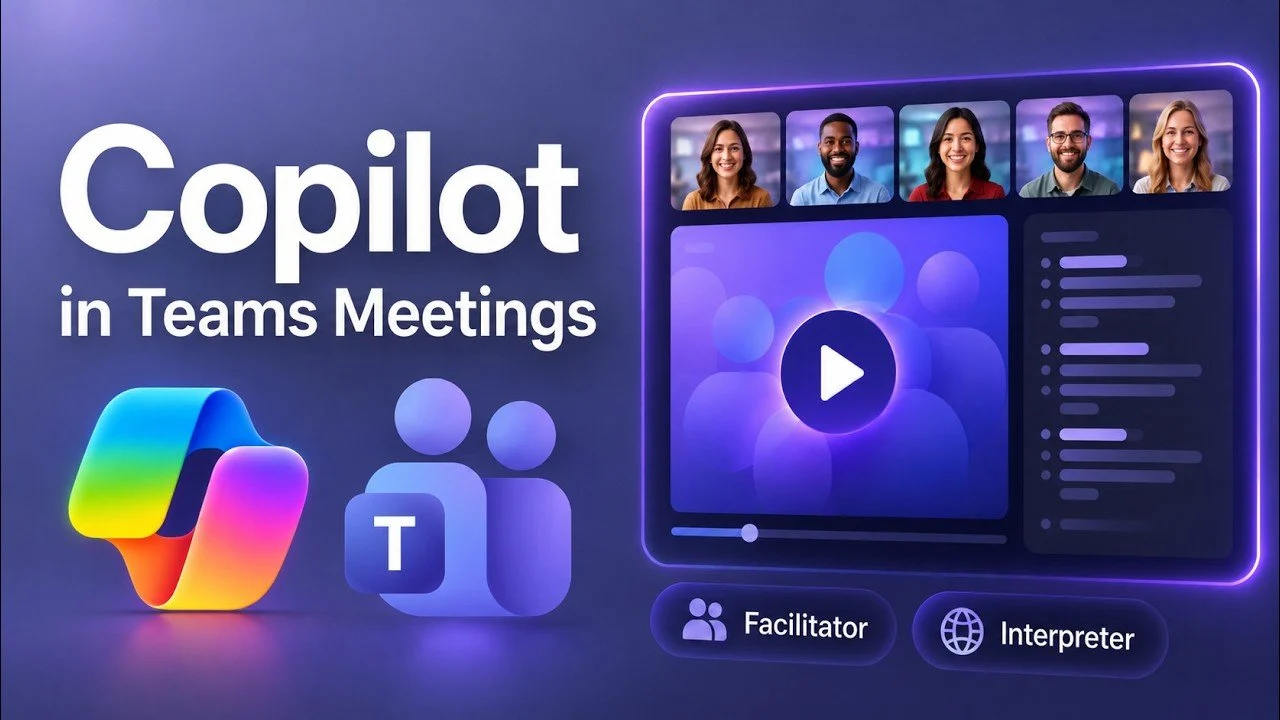
Microsoft Teams’ Copilot brings AI-driven functionality to virtual meetings, offering practical ways to manage tasks and streamline collaboration. As demonstrated by Mike Tholfsen, one notable feature is its ability to automatically record action items during meetings and assign them to the appropriate team members. This reduces the need for manual follow-ups and allows participants to focus on the discussion at hand, making meetings more efficient and organized.
In this how-to guide, explore how Copilot automates task management for better accountability, provides real-time multilingual translation to support diverse teams and generates comprehensive post-meeting summaries for improved alignment. Gain insight into its interactive clarification features, which help ensure clear communication during discussions. These practical applications will equip you to integrate Copilot effectively into your meeting workflows.
Microsoft Teams Copilot Overview
TL;DR Key Takeaways :
- Copilot streamlines meeting facilitation by managing agendas, tracking decisions and assigning tasks in real time, making sure meetings stay organized and productive.
- Automated task management identifies actionable items during meetings, compiles structured task lists and provides detailed follow-ups to maintain clarity and accountability.
- Real-time multilingual translation enables seamless communication across diverse teams by instantly translating spoken and written content, fostering inclusivity and collaboration.
- AI-generated meeting summaries provide concise recaps, full transcripts and follow-up actions in multiple formats, making sure all participants stay informed and aligned.
- Interactive content clarification allows participants to request explanations or add agenda topics during meetings, enhancing understanding and engagement without disrupting discussions.
1. Streamlined Meeting Facilitation
Copilot acts as a virtual facilitator, making sure your meetings are well-organized and stay on track. It manages agendas, monitors progress and allocates time effectively for each discussion point. During meetings, Copilot actively takes notes, tracks decisions and assigns tasks in real time.
Key benefits of this feature include:
- Recording new action items and assigning them to the appropriate team members instantly.
- Maintaining focus during discussions, reducing unnecessary diversions and wasted time.
By handling these administrative details, Copilot allows participants to focus on meaningful conversations and strategic decision-making, making sure meetings are both efficient and productive.
2. Automated Task Management
Managing tasks during and after meetings can often be a time-consuming process. Copilot simplifies this by automating task identification and organization. As discussions progress, it identifies actionable items and compiles them into a structured, easy-to-follow list.
After the meeting, Copilot provides:
- A detailed summary of responsibilities for each participant, complete with deadlines and priorities.
- Streamlined follow-ups, reducing the risk of miscommunication or overlooked tasks.
This feature fosters accountability and ensures that all team members are aligned on next steps, helping to maintain momentum and clarity in ongoing projects.

Here are more guides from our previous articles and guides related to Microsoft Teams that you may find helpful.
3. Real-Time Multilingual Translation
In today’s globalized workplace, language barriers can pose significant challenges to effective communication. Copilot addresses this issue with its real-time multilingual translation and voice interpretation capabilities, allowing seamless collaboration across diverse teams.
Notable advantages include:
- Instant translation of both spoken and written content, making sure inclusivity for participants from various linguistic backgrounds.
- Facilitating smooth communication between team members who speak different languages, fostering a more connected and collaborative environment.
For example, a French-speaking team member can easily communicate with English-speaking colleagues, making sure that language differences do not hinder productivity or mutual understanding.
4. AI-Generated Meeting Summaries
Post-meeting follow-ups are crucial but can often be time-intensive. Copilot’s AI-generated summaries save time by providing concise and accurate recaps in multiple formats, such as text, audio and video.
These summaries include:
- Key points of discussion and decisions made during the meeting.
- A full transcript with updates to the agenda and a list of follow-up actions.
This comprehensive documentation is particularly useful for participants who were unable to attend or need to revisit specific details. By making sure that everyone remains informed and aligned, Copilot helps teams maintain continuity and clarity in their workflows.
5. Interactive Content Clarification
Complex topics or technical discussions often require additional explanation during meetings. Copilot’s interactive features allow participants to request clarifications or additional information without disrupting the flow of the conversation.
Practical applications of this feature include:
- Providing instant explanations for technical terms or agenda items that may be unclear.
- Allowing participants to seamlessly add new agenda topics to ensure all relevant issues are addressed.
This functionality enhances understanding and ensures that all participants remain engaged and informed, contributing to a more efficient and productive meeting experience.
Why Copilot is a Must-Have for Teams
Copilot in Microsoft Teams is more than just an AI assistant, it is a powerful tool designed to optimize meeting productivity and collaboration. By automating routine tasks, allowing real-time multilingual communication and delivering detailed post-meeting summaries, Copilot enables teams to focus on meaningful discussions and effective decision-making. Whether you are managing a small team or coordinating across global offices, Copilot ensures that every meeting is productive, inclusive and well-documented.
Media Credit: Mike Tholfsen
Disclosure: Some of our articles include affiliate links. If you buy something through one of these links, techschimp Gadgets may earn an affiliate commission. Learn about our Disclosure Policy.