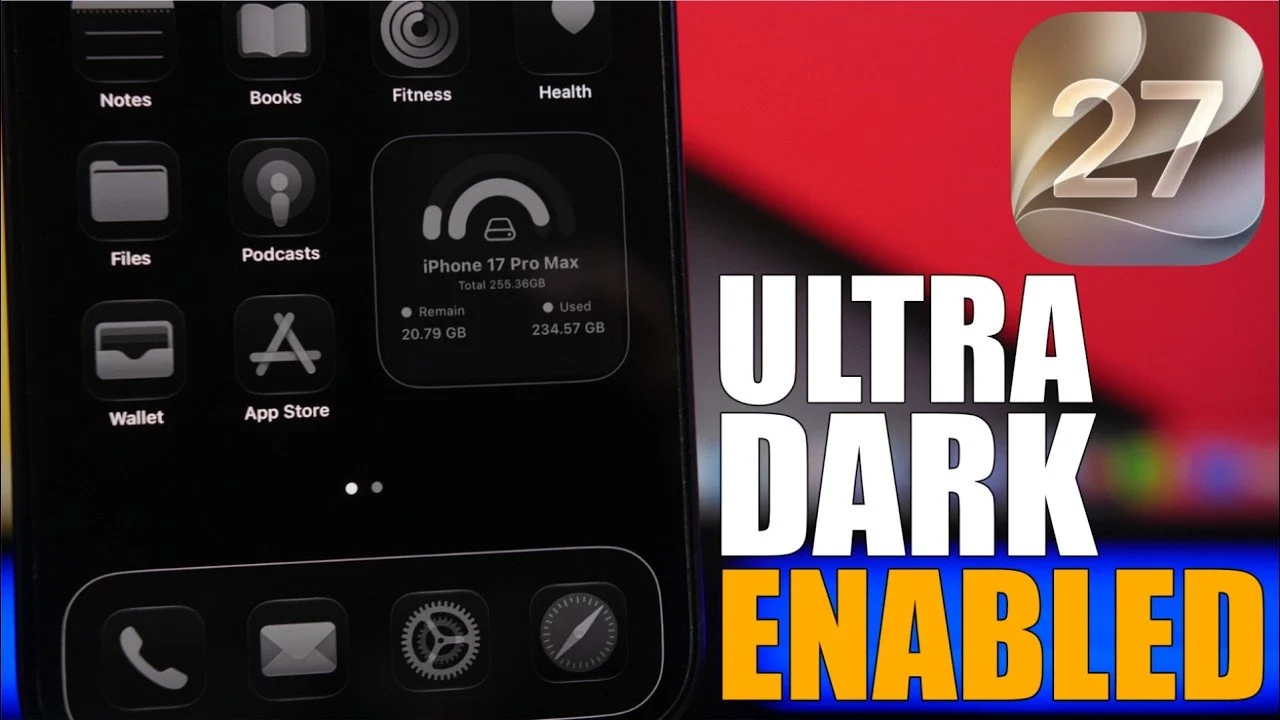
iOS 27 introduces advanced tools and settings that allow you to elevate your iPhone’s dark mode into an immersive ultra-dark experience. By carefully adjusting system settings, customizing visuals, and using accessibility features, you can create a sleek, battery-efficient, and visually cohesive environment. The video below from iReviews gives us more details on how to use Ultra Dark Mode on your iPhone.

1: Activate Dark Mode
The first step in achieving ultra-dark mode is allowing the standard dark mode, which serves as the foundation for further customization. To activate it:
1. Open Settings.
2. Navigate to Appearance and select Dark Mode.
iOS 27 also offers a scheduling feature, allowing you to automate dark mode activation based on your preferences. You can set it to turn on at sunset, sunrise, or during specific time periods. This not only enhances usability in low-light conditions but also helps conserve battery life, particularly on OLED displays where darker pixels consume less power.
2: Customize Your Wallpaper
Selecting the right wallpaper is essential for achieving a cohesive ultra-dark aesthetic. Wallpapers with predominantly black tones or minimalist designs complement dark mode while reducing power consumption.
To optimize your wallpaper:
- Use iOS 27’s built-in tools to apply a dark tint to your chosen wallpaper.
- Experiment with abstract or monochromatic designs for a seamless appearance.
This ensures that your home screen and lock screen blend harmoniously with the dark mode theme, enhancing the overall visual appeal.
3: Personalize App Icons
Customizing your app icons is another way to refine your ultra-dark mode setup. iOS 27 supports dark mode-compatible icons, which align with black or dark-themed wallpapers for a polished look.
Consider these customization options:
- Replace default icons with transparent or tinted alternatives to maintain a consistent aesthetic.
- Explore third-party icon packs designed specifically for dark mode themes.
This level of personalization ensures that your home screen remains visually cohesive and enhances the overall user experience.
4: Enable UI Borders for Better Navigation
To improve usability in dark mode, iOS 27 offers a Show Borders feature. This setting adds subtle outlines around buttons and interactive elements, making them easier to identify without disrupting the dark aesthetic.
This feature is particularly beneficial in low-light environments, where distinguishing between UI elements can be challenging. By allowing borders, you enhance navigation while maintaining the sleek appearance of ultra-dark mode.
5: Refine Your Lock Screen
Your lock screen plays a significant role in completing the ultra-dark experience. iOS 27 provides several customization options to ensure your lock screen aligns with the rest of your device’s theme.
Here’s how to refine it:
- Adjust the clock’s appearance by selecting dark colors or minimalist fonts.
- Enable liquid glass sliders for a modern, darkened effect.
These adjustments create a lock screen that is both functional and visually consistent with the ultra-dark mode aesthetic.
6: Use Accessibility Features
iOS 27 includes powerful accessibility tools that can further enhance your ultra-dark mode experience. These features not only improve usability but also contribute to a more immersive and comfortable viewing environment. Key settings to explore include:
- Reduce Transparency: Simplifies UI elements by removing unnecessary visual effects, making the interface cleaner and less distracting.
- Reduce White Point: Lowers the intensity of bright areas on the screen, creating a darker and more eye-friendly display.
By allowing these features, you can fine-tune your device for optimal performance in low-light conditions while maintaining a cohesive ultra-dark theme.
Achieve the Ultimate Ultra-Dark Experience
Transforming your iPhone into an ultra-dark masterpiece with iOS 27 is a straightforward process that combines functionality with aesthetics. From activating dark mode and customizing wallpapers to refining app icons, borders and lock screen settings, every detail can be tailored to create a visually stunning and battery-efficient experience. By using accessibility features, you can further enhance usability, making sure your device is optimized for both comfort and performance in any lighting condition.
Gain further expertise in iOS 27 by checking out these recommendations.
Source & Image Credit: iReviews
Disclosure: Some of our articles include affiliate links. If you buy something through one of these links, techschimp Gadgets may earn an affiliate commission. Learn about our Disclosure Policy.