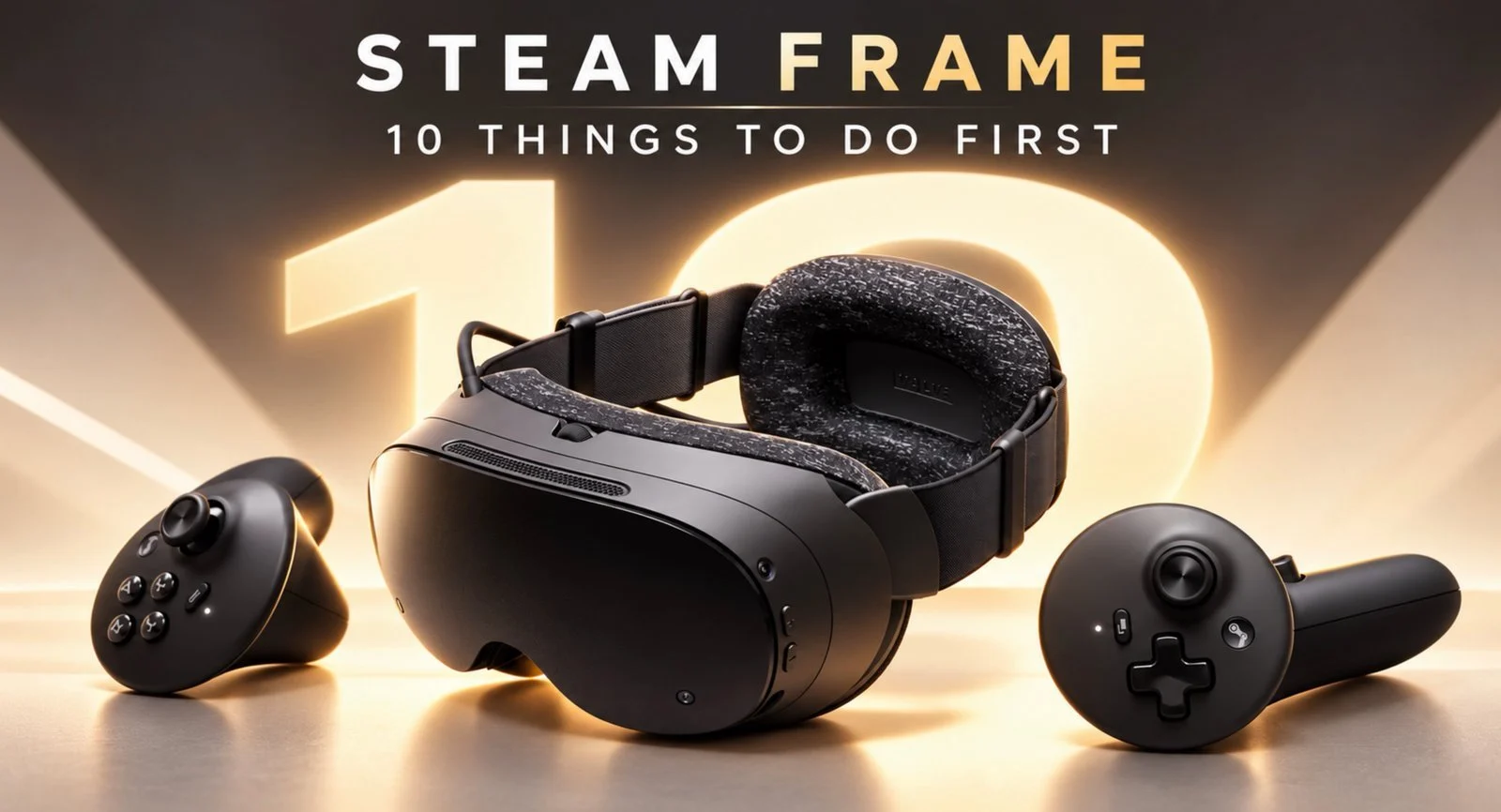
The Steam Frame VR headset delivers an immersive virtual reality experience, but setting it up correctly is crucial for smooth operation. According to Cas and Chary XR, one important initial step is using a 45-watt USB-C charger to fully charge the headset and activating the controllers by removing their battery tabs. These early actions ensure the device is ready for use and help prevent common setup issues.
Discover how to adjust the Interpupillary Distance (IPD) for optimal image clarity, manage battery life to extend your play sessions and customize controller settings for a more tailored experience. This overview also covers practical steps for configuring PC VR streaming and exploring advanced features like desktop mode.
Steam Frame VR Setup Guide
TL;DR Key Takeaways :
- Ensure proper initial setup by charging the headset with a 45W USB-C charger, activating controllers and preparing all components for use.
- Optimize image clarity by adjusting the Interpupillary Distance (IPD) using the lens wheel to reduce eye strain and enhance visual sharpness.
- Maximize comfort by adjusting the headset fit and considering ergonomic accessories like enhanced straps or face cushions for extended sessions.
- Protect the sensitive lenses by avoiding direct sunlight exposure, using a microfiber cloth for cleaning and considering prescription lens inserts if needed.
- Set up PC VR streaming with a wireless adapter, keep software updated and tweak settings to reduce latency and improve streaming performance.
1. Begin with the Initial Setup
When unboxing your Steam Frame, the first step is to ensure all components are ready for use. The headset arrives in a power-saving mode, so connect it to a USB-C charger with at least 45 watts of power before turning it on. For the controllers, remove the battery tabs and press the Steam button to activate them. These initial steps are crucial to ensure your device is fully functional and ready for operation.
2. Optimize Image Clarity
Achieving clear visuals is vital for an immersive VR experience. Use the lens wheel to adjust the Interpupillary Distance (IPD) to match the spacing between your eyes. Once the ideal setting is found, lock the adjustment to maintain focus during future sessions. This simple yet effective step enhances image sharpness and reduces eye strain, making sure a more comfortable and visually engaging experience.
3. Ensure Maximum Comfort
Comfort is a key factor for extended VR sessions. Position the Steam Frame securely on your head and adjust the pivot arms for a snug fit. If the default setup feels uncomfortable, consider upgrading to ergonomic accessories such as enhanced head straps or face cushions. These additions can significantly improve comfort, especially during long gaming or productivity sessions.
4. Protect the Lenses
The lenses are among the most sensitive components of your Steam Frame and require careful handling. Avoid exposing them to direct sunlight, as this can cause irreversible damage to the display. Clean the lenses only with the provided microfiber cloth to prevent scratches. If you wear glasses, investing in prescription lens inserts can help avoid accidental contact with the headset’s lenses, making sure both safety and clarity.

Unlock more potential in Steam Frame by reading previous articles we have written.
5. Set Up PC VR Streaming
For users planning to stream PC VR content, proper setup is essential for optimal performance. Connect the wireless adapter to a USB 3 port to ensure high-speed data transfer. Keep all software updated, including the headset firmware, Steam client and Steam VR. If you experience connectivity issues, joining beta updates or tweaking advanced settings can help reduce latency and improve streaming quality.
6. Manage Battery Life Effectively
Efficient battery management is critical for uninterrupted gameplay. Switch between performance and playtime modes to balance refresh rates and battery consumption. For extended sessions, use a power bank to keep the headset charged. Avoid letting the battery drop below 5%, as this can negatively impact its long-term health and performance.
7. Customize Controller Features
The Steam Frame controllers are designed for versatility and adaptability. Customize button bindings to suit your gameplay preferences, whether you’re playing VR or flat-screen games. For added convenience and security, consider using hand straps to improve grip and prevent accidental drops during intense gaming sessions.
8. Explore Game Recommendations
The Steam Frame comes bundled with “Half-Life Alyx,” a critically acclaimed VR title that showcases the headset’s capabilities. Begin with this game to experience the full potential of your device. Beyond this, explore other verified VR games available on the Steam platform. Adjust video settings for each title to optimize performance and tailor the experience to your preferences.
9. Record and Stream Your Gameplay
Capture your VR adventures using the headset’s built-in recording tools or third-party apps like Stream Frame. To share live gameplay, use the Steam Link app or PC remote play settings. These features allow you to showcase your experiences with friends or a broader audience, adding a social and interactive dimension to your VR sessions.
10. Unlock Desktop Mode and Advanced Customization
The Steam Frame offers a full Linux desktop mode, allowing you to connect Bluetooth devices such as keyboards and mice. For advanced users, root access unlocks deeper customization options, including the ability to install additional apps and emulators. This feature transforms the headset into a versatile tool for both productivity and entertainment, extending its functionality beyond gaming.
By following these ten steps, you can fully optimize your Steam Frame VR headset for a seamless and enjoyable experience. From initial setup to advanced customization, each recommendation ensures that you can dive into virtual worlds, stream gameplay and explore the device’s full range of features with confidence.
Media Credit: Cas and Chary XR
Disclosure: Some of our articles include affiliate links. If you buy something through one of these links, techschimp Gadgets may earn an affiliate commission. Learn about our Disclosure Policy.