

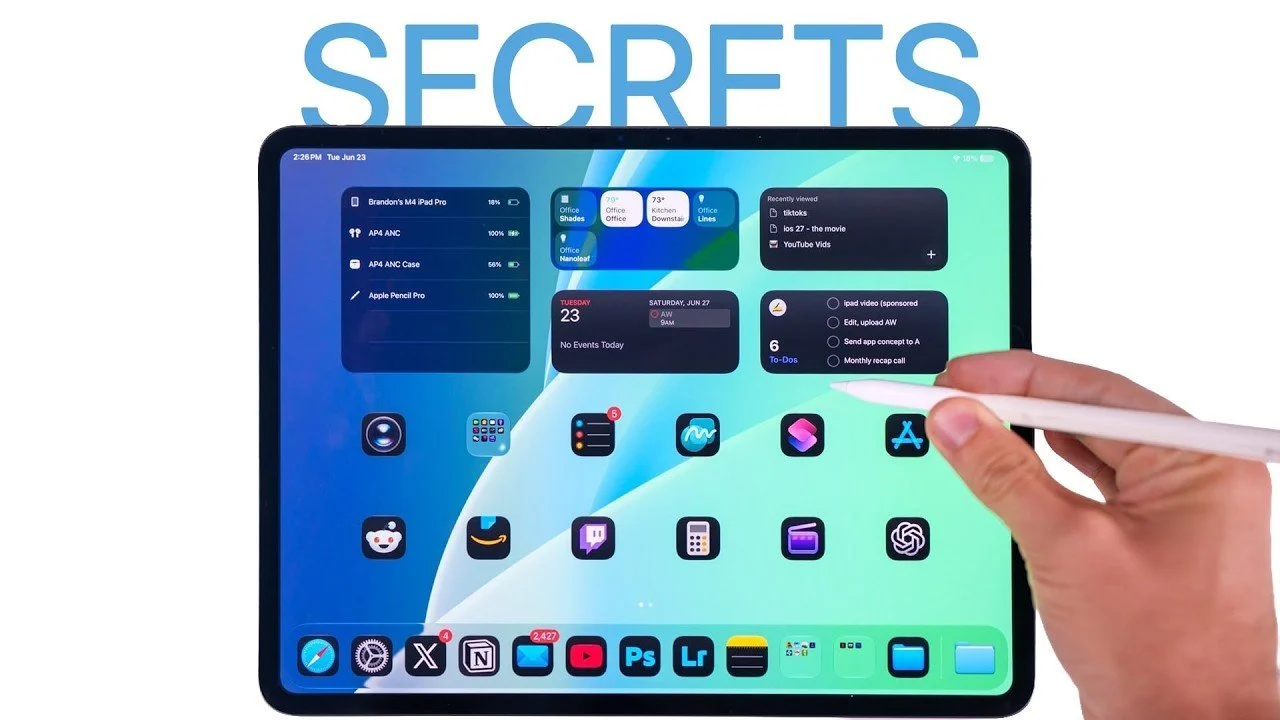
Think you’ve mastered your iPad? Think again. Apple’s powerful tablet is packed with features that can significantly enhance how you work, create, and stay organized. From multitasking to file management, these 16 tips and tricks will help you unlock your iPad’s full potential and make it an indispensable tool for productivity. The video below from Brandon Butch gives us more details.

1. Drag and Drop Across Apps
The iPad’s drag-and-drop feature allows you to seamlessly move text, images and files between apps. For instance, you can drag a photo from Safari and drop it directly into Notes or Pages without switching back and forth. Even better, you can select multiple items simultaneously, making tasks like organizing files or creating presentations faster and more efficient. This feature is especially useful for multitasking and streamlining your workflow.
2. Quick Access to App Settings
Navigating app-specific settings has never been easier. By adding a shortcut to the Control Center, you can jump directly to an app’s settings without digging through the Settings menu. This is particularly helpful for apps that require frequent adjustments, such as productivity tools or creative software. With just a swipe and a tap, you can save time and maintain your focus.
3. Supercharge the Files App
The Files app is a powerful tool for managing your documents and media. To make the most of it:
- Customize folders with colors, tags, or emojis for quick identification and better organization.
- Enable offline access for critical folders, making sure you can work without an internet connection.
- Adjust column views and sorting options to navigate files more intuitively and efficiently.
These small adjustments can transform the Files app into a central hub for managing your projects and documents.
4. Set Default Apps
Manually selecting apps to open files can be tedious. By setting default apps for specific file types, you can streamline your workflow. For example, configure PDFs to open in Adobe Acrobat or images in Photoshop. This ensures consistency and saves time, especially when working on projects that require specific tools.
5. Customize the Dock and Folders
The Dock is more versatile than it appears. Add frequently accessed folders alongside your favorite apps for quick access to important projects. On the Home Screen, folders can be displayed in grid or fan view, giving you greater control over how you organize your content. These customizations make it easier to navigate your iPad and keep your workspace tidy.
6. Master Multitasking
Multitasking on the iPad has evolved significantly. Use gestures to open multiple apps in Split View or Slide Over mode, allowing you to work on two tasks simultaneously. For advanced users, Stage Manager provides a desktop-like experience, allowing you to resize and organize app windows for a more efficient workspace. These multitasking features are ideal for professionals juggling multiple projects or students managing coursework.
7. Perfect Your Markup and Drawing
If you use the Markup tool or Apple Pencil, these tips can elevate your experience:
- Perfect shapes by holding your finger on the screen after drawing to transform rough sketches into clean circles, squares, or arrows.
- Use the object eraser to remove entire objects instead of erasing line by line, saving time and effort.
These features make the iPad a powerful tool for creatives and professionals who rely on precision and efficiency.
8. Use Your iPhone as a Remote
Your iPhone can serve as a remote control for your iPad through accessibility settings. This is particularly useful for presentations or media playback. Additionally, you can mirror your iPad’s screen to an external monitor or use it as a secondary display for your Mac, expanding your workspace and enhancing your productivity.
9. Unlock Keyboard Shortcuts
The iPad keyboard offers more functionality than meets the eye. Here’s how to make typing and editing faster:
- Shrink the keyboard for one-handed use, making it easier to type on the go.
- Swipe down on keys to access secondary characters without switching keyboards.
- Use the spacebar as a trackpad for precise cursor control, simplifying text selection and editing.
These shortcuts can significantly improve your typing speed and accuracy.
10. Apple Pencil Gestures
The Apple Pencil is more than just a drawing tool. Double-tap the Pencil to switch tools or activate the eraser. You can also customize gestures, such as tapping or squeezing, to perform specific actions. These features make the Apple Pencil a versatile tool for both creatives and professionals, enhancing its functionality beyond drawing and sketching.
11. Simplify Calendar and Clock Inputs
Entering times and dates doesn’t have to be a chore. Instead of scrolling through options, use the number pad for quicker input. This small adjustment can save time when scheduling appointments, setting alarms, or managing deadlines, making your iPad even more efficient for time management.
12. Maximize Siri’s Potential
Siri is more than a voice assistant; it’s a productivity powerhouse. Use concise commands for tasks like unit conversions, setting timers, or creating reminders. For example, say, “Convert 10 pounds to kilograms,” and Siri will instantly provide the answer. These capabilities make Siri a valuable tool for simplifying everyday tasks.
13. Fine-Tune Haptic Touch
Haptic Touch adds a tactile layer to your iPad experience. Adjust the touch duration in settings to control how quickly content previews and actions appear. This customization ensures the feature works at a pace that suits your preferences, enhancing your overall user experience.
14. Automatic Unit Conversions
Highlighting text with units, such as “10 lbs” or “5 km,” triggers automatic conversions. This feature is especially useful when working with international measurements or recipes, eliminating the need for manual calculations and saving time.
15. Enhance Your Workflow with Shortcuts
Apple’s Shortcuts app allows you to automate repetitive tasks. Create custom workflows, such as resizing images, sending pre-written emails, or generating reports, all with a single tap. This feature is a powerful way to streamline your daily routine and focus on what matters most.
16. Expand Your Screen Real Estate
Use your iPad as a secondary display for your Mac with Sidecar. This feature is perfect for multitasking, allowing you to extend your workspace or mirror your Mac’s screen for presentations and creative projects. It’s an excellent way to maximize your productivity and make the most of your devices.
These 16 tips and tricks are designed to help you get the most out of your iPad. Whether you’re a casual user or a power user, these features can make your device more intuitive and efficient. By exploring these functionalities, you’ll discover new ways to enhance your productivity and streamline your workflow.
Explore further guides and articles from our vast library that you may find relevant to your interests in iPad Multitasking Features.
Source & Image Credit: Brandon Butch
Disclosure: Some of our articles include affiliate links. If you buy something through one of these links, techschimp Gadgets may earn an affiliate commission. Learn about our Disclosure Policy.




![Hands-on: This case adds a customizable e-ink display to your iPhone [Video]](https://shopvante.com/wp-content/uploads/2026/06/Extrem-e-ink-336x220.jpg)

