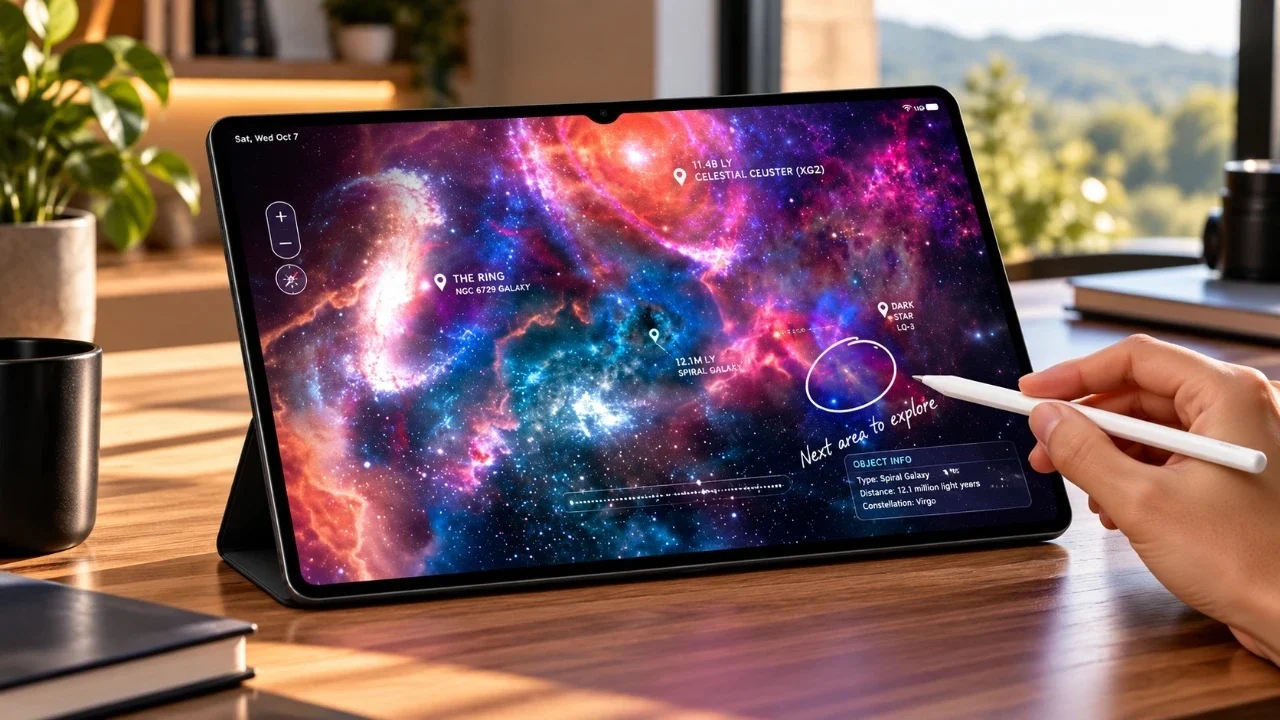
Unboxing your Samsung Galaxy Tab S12 Ultra is an exciting moment, but what you do next can significantly shape your experience. The video below from GregglesTV outlines the first steps to optimize your new tablet, covering everything from camera settings to advanced features. By following these steps, you’ll ensure your device is tailored to your needs and ready to perform at its best.

Fine-Tune Your Camera Settings
The Galaxy Tab S12 Ultra’s camera system is a standout feature, but some initial adjustments can enhance its performance:
- Set the video resolution to UHD (4K) for capturing high-quality recordings.
- Adjust the frame rate to ensure smoother video playback.
- Disable location tags in photos if privacy is a priority.
- Enable shooting methods like voice commands or gestures for added convenience.
- Turn off the shutter sound for discreet photography.
Customize Your Home Screen
A personalized and organized home screen can improve both usability and aesthetics:
- Adjust the grid layout to fit more or fewer icons, such as 10×6 or 8×6, depending on your preference.
- Enable or disable the Google media page and search bar based on your workflow.
- Personalize the quick toggles and notification panel for easy access to frequently used features.
Optimize Wi-Fi and Connectivity
Streamline your connectivity settings to avoid interruptions and maximize efficiency:
- Turn off Wi-Fi network notifications to stop alerts about open networks.
- Configure Quick Share for seamless file sharing, even with non-Samsung devices.
Activate AI and Advanced Features
Unlock the full potential of your tablet by allowing its AI and multitasking capabilities:
- Enable Galaxy AI features for intelligent recommendations and note summarization.
- Use the Labs settings to activate multi-window support and landscape mode for apps.
Enhance Sound and Notifications
Customize audio and notification settings to suit your preferences and enhance your experience:
- Enable Dolby Atmos for an immersive sound experience in movies, music and games.
- Turn on notification history to retrieve dismissed alerts.
- Adjust notification pop-up styles and edge lighting effects for better visibility.
Adjust Display Settings
Optimize the screen for comfort and visual appeal:
- Switch between light and dark modes or set a schedule for nighttime use.
- Choose the “Vivid” screen mode for vibrant and dynamic colors.
- Enable “Keep screen on while viewing” to prevent the screen from timing out during use.
Configure the Taskbar and Navigation
Streamline multitasking and navigation for a smoother experience:
- Customize the taskbar with your most-used apps for quick access.
- Adjust navigation bar settings to suit your preferences, especially if you’re using a screen protector.
Manage Battery Health
Extend your tablet’s battery life and maintain its health over time:
- Enable the battery protection feature to limit charging to 85% capacity.
- Monitor battery usage and adjust settings like screen brightness and background app activity.
Set Up Security and Biometrics
Secure your device while maintaining convenience:
- Set up face recognition and fingerprint unlock for quick and secure access.
- Customize lock screen preferences, such as shortcuts and notifications, to suit your needs.
Update Software and Explore Customization
Keep your device up-to-date and personalize it further:
- Check for system updates to access the latest features and security patches.
- Update pre-installed apps via the Galaxy Store to ensure optimal performance.
- Install the “Good Lock” app for advanced interface and functionality customization.
Configure Keyboard and Mouse Settings
If you’re using external peripherals, adjust their settings for maximum efficiency:
- Modify key functions and touchpad sensitivity to suit your workflow.
- Set up shortcuts to streamline your tasks and improve productivity.
Explore Additional Features
Take time to explore the Galaxy Tab S12 Ultra’s additional features to fully use its capabilities:
- Experiment with Samsung DeX for a desktop-like experience on your tablet.
- Use the S Pen for precise note-taking, drawing, or navigating the interface.
- Set up SmartThings to integrate your tablet with other smart devices in your home.
Maximize Your Experience
By following these 20 steps, you’ll unlock the full potential of your Samsung Galaxy Tab S12 Ultra. From enhancing the camera to allowing advanced multitasking features, these adjustments ensure a personalized and efficient experience. Take the time to explore these settings and make your tablet truly yours. With its powerful hardware and versatile software, the Galaxy Tab S12 Ultra is designed to adapt to your needs and elevate your digital lifestyle.
Become an expert in the Samsung Galaxy Tab S12 Ultra with the help of our in-depth articles and helpful guides.
Source: GregglesTV
Disclosure: Some of our articles include affiliate links. If you buy something through one of these links, techschimp Gadgets may earn an affiliate commission. Learn about our Disclosure Policy.